
Attendees can self-scan themselves in to and out of a session to record their attendance by using our event check-in kiosk’s when in ‘session scan’ mode.
When in this mode, the kiosk application will record every scan an attendee performs and the system will automatically determine if the scan is a session check-in or check-out.
How it works
The kiosk application in ‘session check-in’ mode is configured to a session room. Once configured to a room it can be left to operate autonomously until the end of your event.
The kiosk will follow the event agenda as published in our platform for all sessions held within the room it is configured. When the next session begins, the kiosk will record check-ins for that session.
As a pre-requisite all attendee badges will need our QR code printed on them to use this feature. Checking-in or out of a session cannot be performed by entering names or email addresses.
Determining a Check-in or Check-out event
When an attendee scans their badge, the system will check for any previous scans they have performed within the same session. If none are found, the scan is deemed a check-in event.
If a previous scan is found for the same session, then it’s deemed a check-out event.
Attendees can check-in and out multiple times within a session and their total time within the session is calculated post event.
How does the kiosk know when the session has started or ended?
The kiosk has no way of knowing for sure when a session has physically started or ended. Sessions can sometimes start a little early or finish a little late.
However, the kiosk tries it’s best to be accurate as possible without human intervention by working to the following business logic rules.
- If the session is the first session of the day, check-in events for that session can occur 20-minutes before the scheduled session start time.
- If the session is the last session of the day, check-out events for that session can occur up to 20-minutes after the session has ended.
- If the session is after the first session of the day or follows a previous session, then the session changeover time as configured for the room is used to determine session switchover.
For example, if you have configured 15-minutes of session changeover in between sessions, any scans detected in the first 7 minutes and 29 seconds of that change over period will be recorded against the previous session. Any scans detected from 7 minutes 30 seconds or more will be recorded against the next session to follow in that room.
This is to provide a level of buffer for late running sessions and early arrivals so they don’t lose out on a scan, especially if their attendance is being scored for merit points. - Please note that all total attendance time calculations are based on the duration the attendee is in the session as per the scheduled time of the session on the agenda. The time between scanning and the session starting will not be taken into account for the purpose of time based scoring.
It is not possible to override the kiosk to switch to the previous session if it’s severely overrunning. If you need ultimate control over session scanning, we recommend you use the mobile app with an attendant so they can manage the scanning.
How to configure the kiosk for session scan mode
On the kiosk admin screen, click on Conference Settings
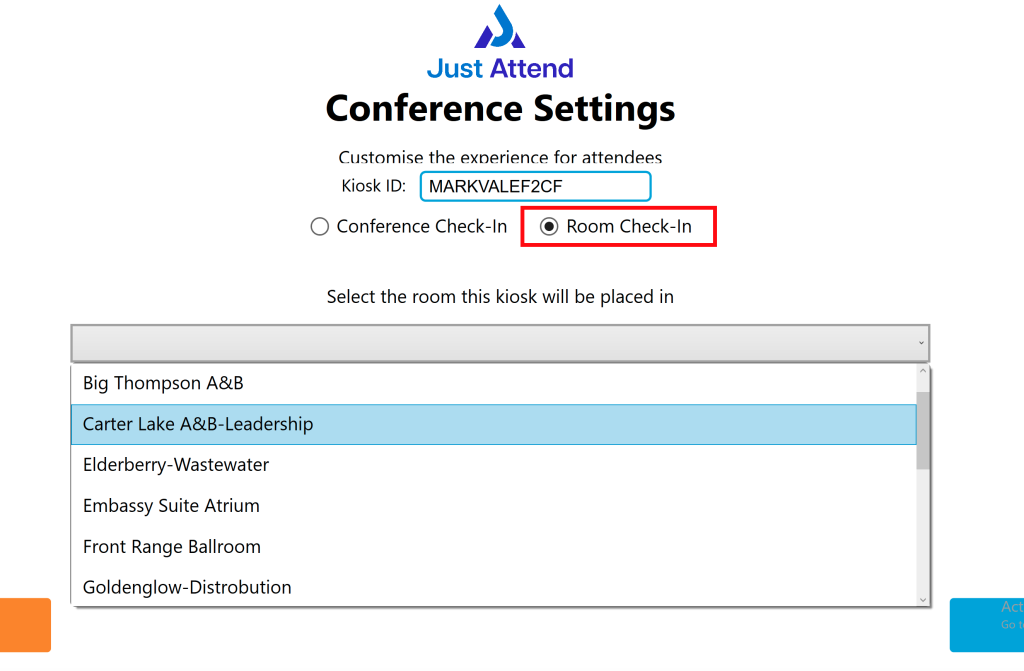
Select the “Room Check-in” option. When selected a drop down field will appear.
Select the room the kiosk is going to be placed in and press Save.
Now enter Room Check-in Mode
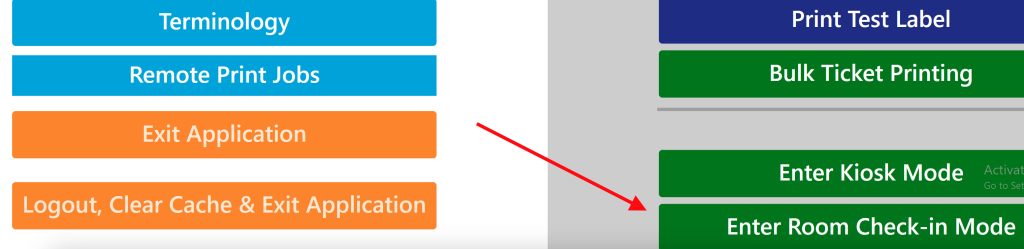
That’s it, the kiosk is now ready!