
The event registration ticketing system can operate in one of two ways:
- Single ticket mode (default)
- Bulk ticket mode (requires enabling in event settings)
In single ticket mode, visitors to your event page can purchase one ticket per transaction. This mode is preferred if your attendee demographic registers for your event individually. They can purchase additional tickets for themselves e.g. an event party add-on ticket, but they cannot purchase additional tickets on behalf of their colleagues or friends.
In bulk ticket mode, visitors can purchase any quantity of the same ticket in one transaction. This person may or may not be buying a ticket to your event for themselves, but instead for their colleagues, for example, the finance team purchasing on behalf of the company attending.
In bulk ticket mode, single person registrations still work the same as they do in single ticket mode.
We recommend enabling bulk ticket mode if you want to offer quantity based discount incentives or if your attendees primarily do not purchase their ticket themselves and require their own finance approval.
Enabling Bulk Ticket Mode
To enable bulk ticket mode, go to your event admin portal. From there click Configuration > Settings > General Settings
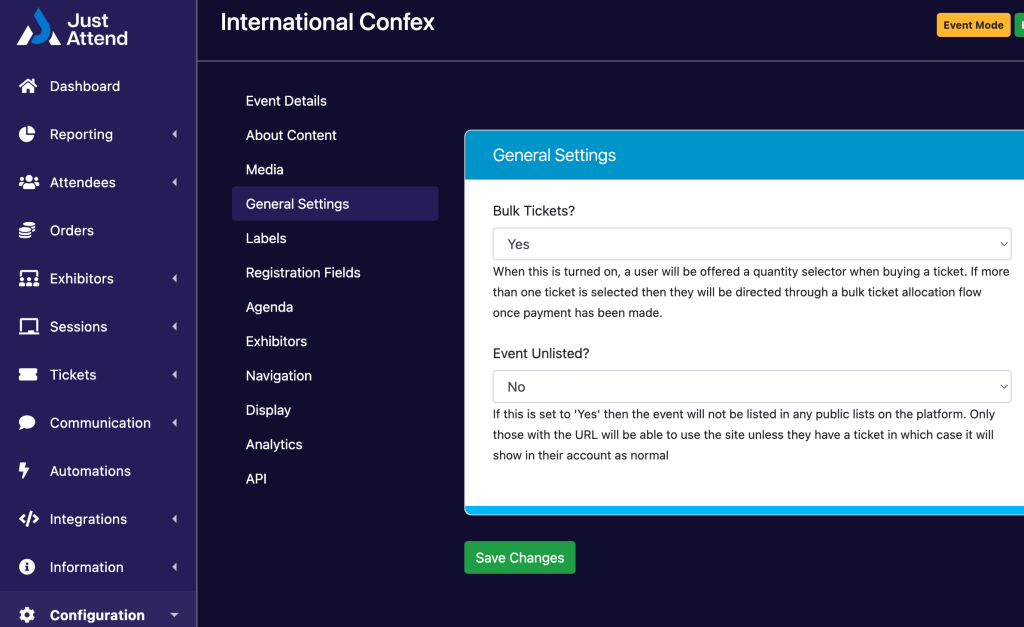
Turn the bulk ticket mode on by changing the dropdown for bulk tickets from No to Yes.
This will modify the ticket checkout behavior for all tickets. When purchasing tickets, the ticket page experience is the same, what changes is when they click ‘buy now’ on a ticket. When they do this, they will be asked to enter a quantity.
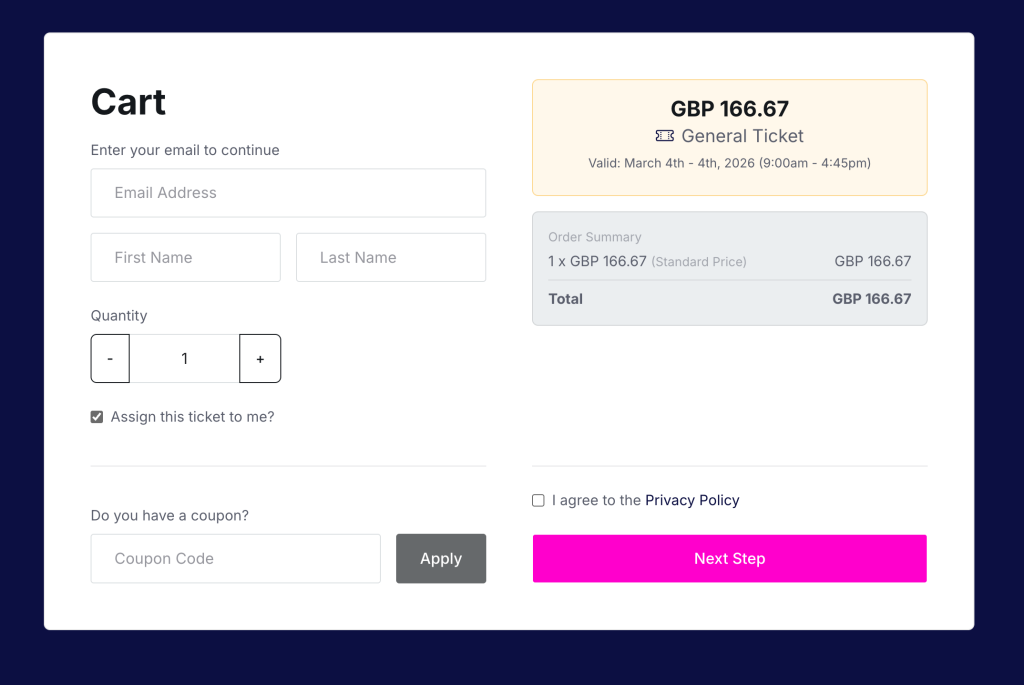
Checkout Behavior
When the quantity of tickets is set to one, the default expectation is that the ticket is for the person purchasing and therefore the checkbox for “Assign this ticket to me” is checked. When checked, the checkout process follows the same behavior as the single ticket purchase flow.
If they’re purchasing a ticket on behalf of someone else, they can uncheck this box before proceeding.
If they change the quantity of tickets to greater than one, this option is temporarily removed at the checkout stage. They can allocate a ticket to themselves after completing their purchase.
Allocating Tickets Post Purchase
Once they have completed their purchase the purchaser must then allocate their purchased tickets to the rightful recipients. This is done on the post purchase screen.
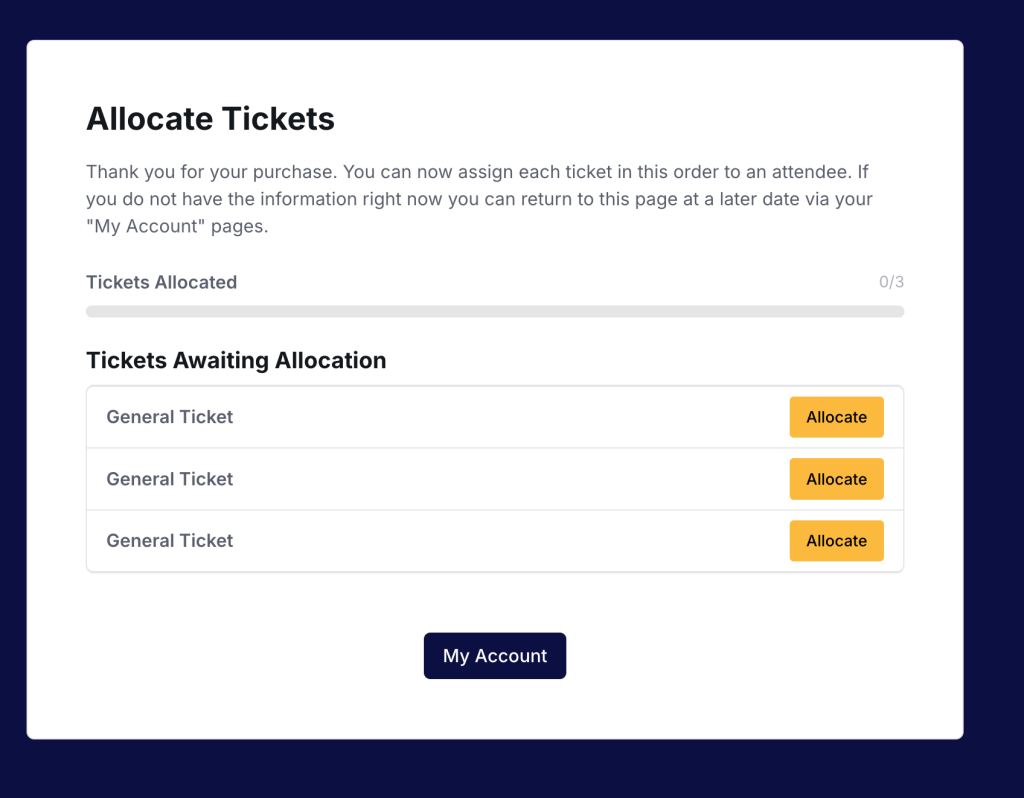
To allocate a ticket, press the Allocate button next to the ticket you want to assign.
Here you will be able to enter the email address of the recipient or choose to allocate the ticket to yourself. You can also choose whether you want to complete their registration fields yourself, or delegate that process to the recipient instead.
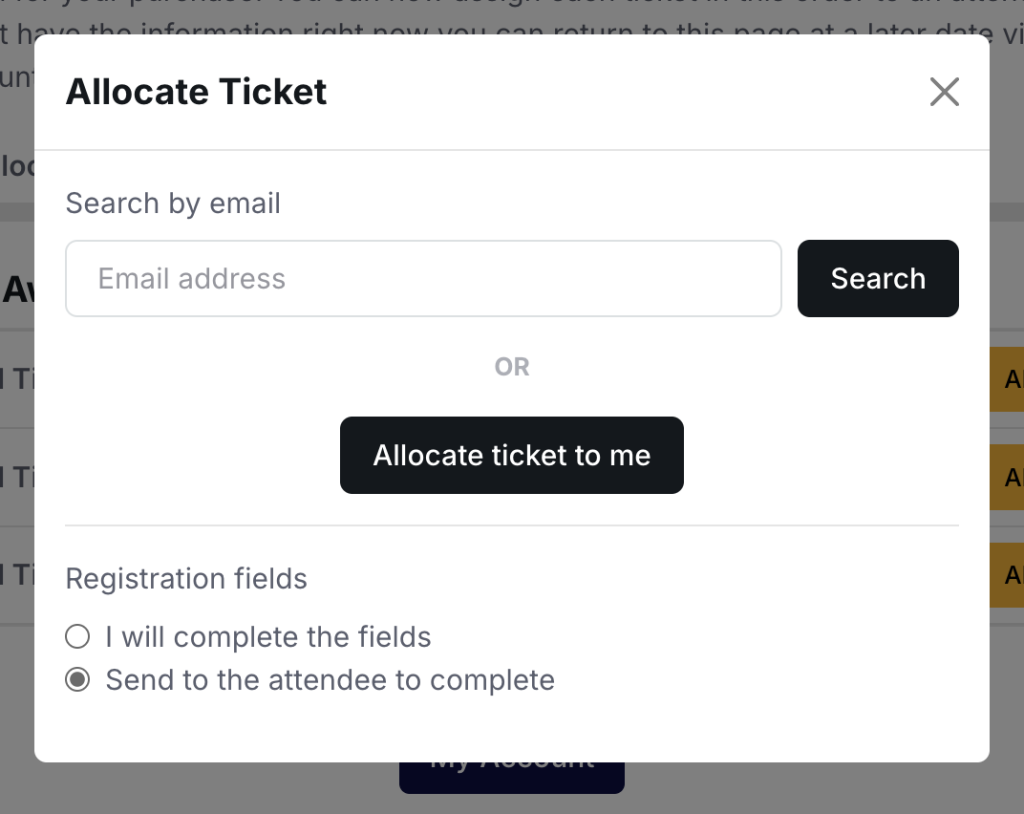
If the person does not have an account already, you’ll be required to enter their name
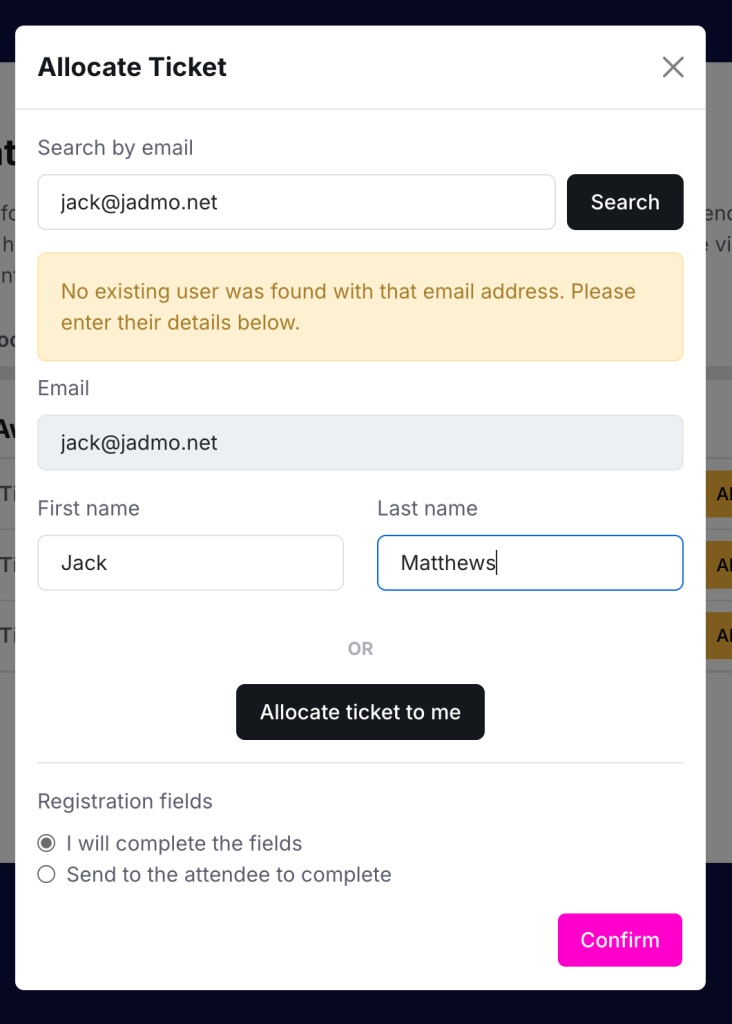
When you press confirm one of two things will happen depending on whether you selected that you will complete their registration fields or if the recipient will. If you selected recipient, then they will receive an email telling them to complete their fields. You can modify this email in the event portal.
The ticket will not be released to them until they have completed this, but it will be allocated to them.
If you selected you will complete the fields, you’ll be taken to a page to complete these.
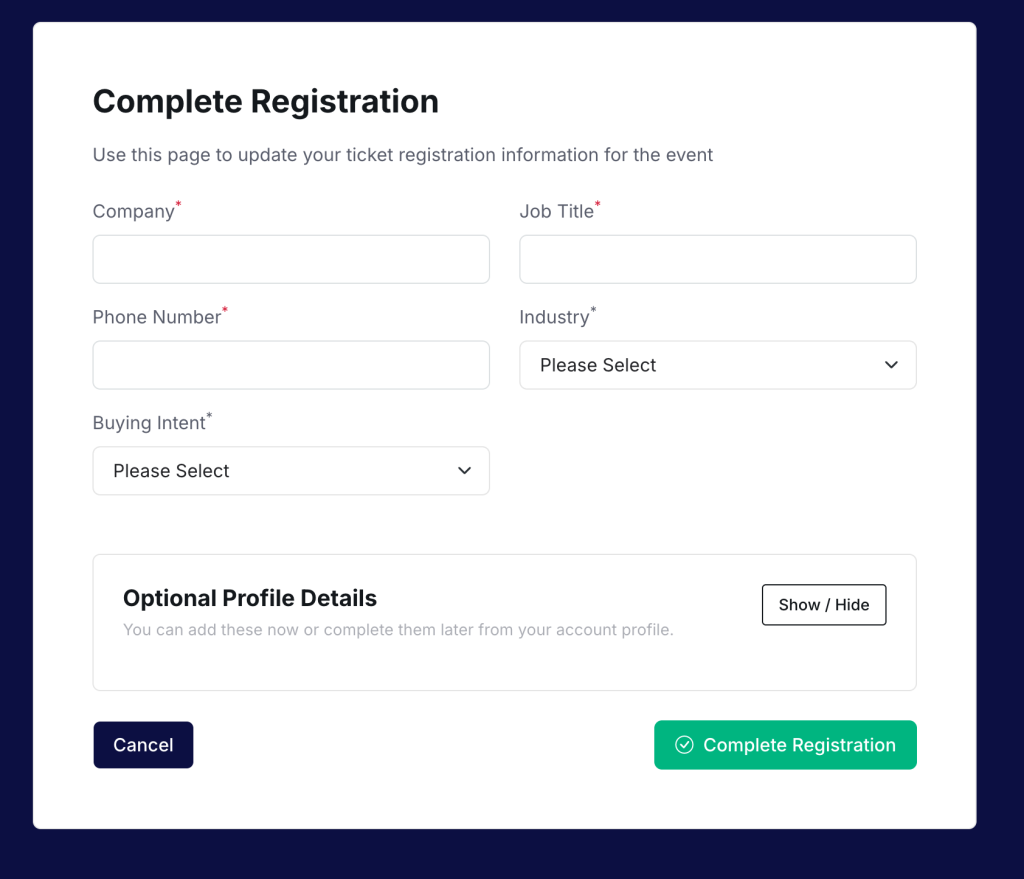
Once you have completed the registration fields you’ll be returned to the allocate tickets page.
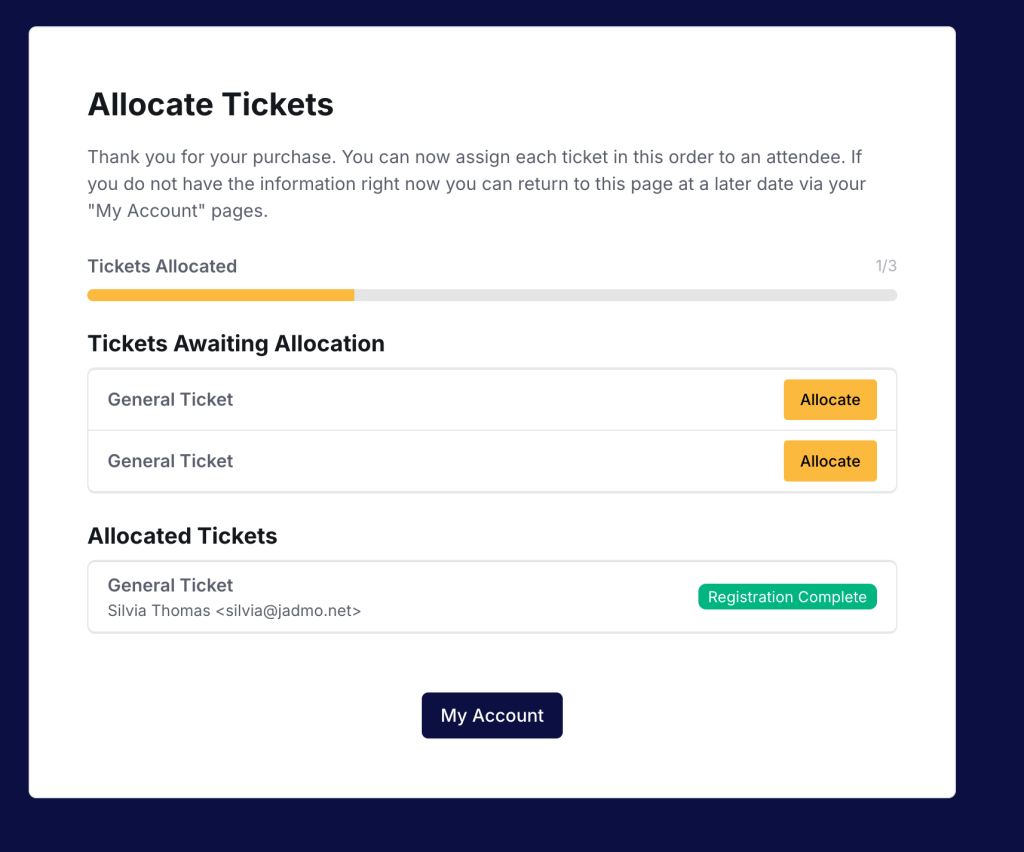
Finish allocating your tickets. If you don’t allocate all tickets at the time of purchase, you can login to the event platform and manage your ticket allocations another time.
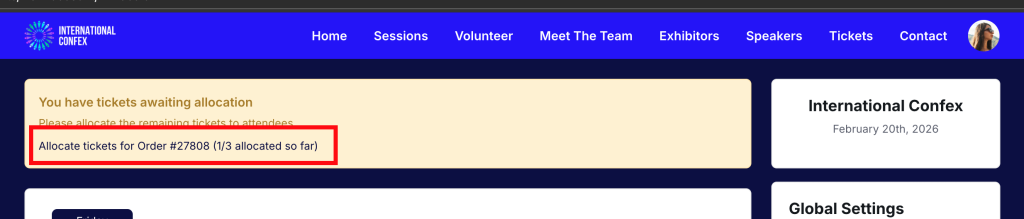
Managing Your Allocated Tickets
If you have purchased multiple tickets, you can modify who they are allocated to at any time from your My Account > Tickets page in the event.
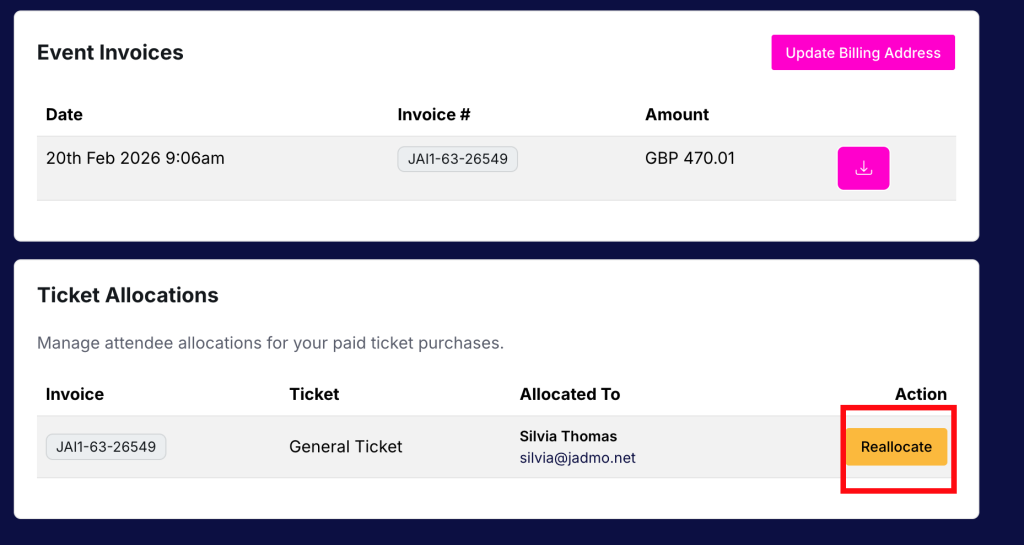
When you reallocate a ticket, the person who currently has the ticket assigned will have their ticket revoked and cancelled for the event. They will no longer be able to attend.
The ticket will then be reassigned to the person you’re changing the ticket to.
This process does not refund ticket purchases if they are unallocated. If you think you qualify for a refund, please contact the event organiser directly.
Bulk Ticket Discounts & Coupon Codes
Event managers can set discounts for purchasing a certain amount of tickets in one transaction. It is important to note that this must be in one transaction. Purchasing tickets in multiple transactions do not qualify for bulk discounts even if the number of overall tickets purchased by the same person exceeds the bulk discount threshold set by the event manager.
When applying quantity based discounts it’s important to note that the discount you set is per ticket and not total order discount. The discount will apply to all tickets over the qualifying quantity threshold.
For example, your event ticket is $300. Setting a quantity discount threshold for 2 tickets at $50 off per ticket will discount every ticket to $250 in the same order as long as they buy 2 or more.
The quantity discount does not support selling tickets under the threshold at full price and only tickets above the threshold at the discounted price. Using the above example, that means it won’t sell the 1st ticket at $300 and the second ticket at $250.
Similarly the discount is a threshold gate, so it is always n+, so in the above example, if someone bought 10 tickets in the same transaction, each of those 10 tickets will cost $250.
You can apply iterative discounts, for example 2 or more $10 off per ticket, 5 or more $15 off per ticket etc.
You can set this up in the event admin portal under tickets > discounts > bulk ticket discounts
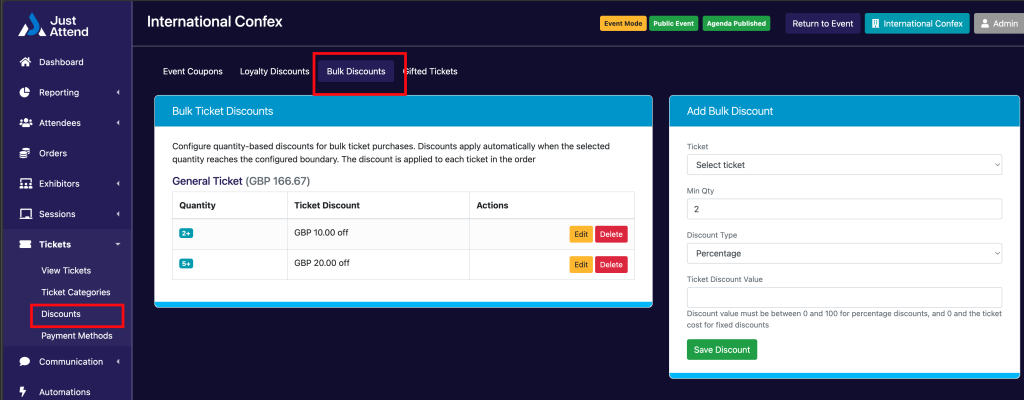
You will need to set your bulk discounts for each ticket you want them to apply to. Discounts can be fixed amount, or percentage.
You can remove or edit the discount at any time. There’s currently no option to schedule discounts on or off.
Coupon Code Interoperability
It is important to understand how coupon behavior works when bulk ticketing is enabled.
Valid coupons can be used against a ticket that also has a bulk discount applied. However, coupons can only be used if the quantity of tickets being purchased is under the first bulk ticket discount threshold.
For example, you create a coupon for 50% off with a maximum of 10 uses and assign it to the General Admission ticket that costs $30. You also create a bulk ticket discount for $20 off per ticket if the purchaser buys more than 5 General Admission tickets in a single transaction.
Alice purchases 4 x General Admission tickets in the same transaction. Alice applied the 50% coupon code to their order. Each ticket costs Alice $15, totalling $60 vs $120 at full retail price.
As the coupon has now been used 4 times by Alice, the number of available uses left for the coupon code is now reduced from 10 to 6.
Jennifer buys 5 tickets in one transaction. As they have selected a quantity that qualifies for a bulk discount, Jennifer is unable to also use the discount coupon. Instead, they only benefit from the quanity discount.
Now Bob also buys 4 tickets and uses the coupon. This reduces the remaining coupon validity use to 2.
Mary now tries to buy 3 tickets using the same coupon. Mary is only able to benefit from the coupon discount for 2 or their 3 tickets. This means Mary will pay full retail price for the 3rd ticket in their purchase.